For travel, the Samsung T7 Shield has an IP65 rating and a 10 Gbps interface. The Crucial X9 Pro is the pick if you need up to 4TB plus IP55. The Kingston XS1000 is the light, no-frills option at 28.7 g, with no listed IP rating. All three list similar maximum speeds.
If you want one external SSD to carry in a bag and plug into most modern laptops, start with the Samsung T7 Shield. It uses USB 3.2 Gen 2 at 10 Gbps, lists up to 1050 MB/s read and 1000 MB/s write, and carries an IP65 rating. If you need more room, especially up to 4TB, look at the Crucial X9 Pro. If you want a light drive (Kingston lists 28.7 g) with a USB-C-to-A cable and an A-to-C adapter in the box, and you don't need weather resistance, the Kingston XS1000 is the sensible choice.
All three publish very similar top speeds. That means you are not choosing based on speed. You are choosing based on ruggedness, capacity, weight and how well each one fits the ports you actually have. This guide is built from manufacturer specifications, not our own testing. We have not benchmarked these drives, and the speeds below are the makers' published maximums. Our editorial policy explains how we pick and check products.
Quick picks
| Product | Best for | Documented strength | Check before buying |
|---|---|---|---|
| Samsung T7 Shield | Travel and rougher handling | IP65 rating under controlled test conditions; USB 3.2 Gen 2, up to 1050 MB/s read and 1000 MB/s write | IP65 is not submersion protection, and the manufacturer excludes liquid and dust damage from warranty |
| Crucial X9 Pro | Large libraries and project archives | Capacities up to 4TB, Micron TLC NAND, IP55, sequential read and write up to 1050 MB/s | Confirm the box says X9 Pro, not X9, and confirm the capacity you want is actually in stock |
| Kingston XS1000 | Lightweight carry and mixed USB-A and USB-C ports | 28.7 g; USB-C-to-A cable plus A-to-C adapter included; up to 1050 MB/s read and 1000 MB/s write | No IP rating listed, and it only comes in 1TB and 2TB |
Prices on external SSDs change, and we don't list them here because a figure we quoted today could be wrong tomorrow. Check the current price yourself before you buy, and compare the same capacity across all three drives.
Samsung T7 Shield: best for rough travel
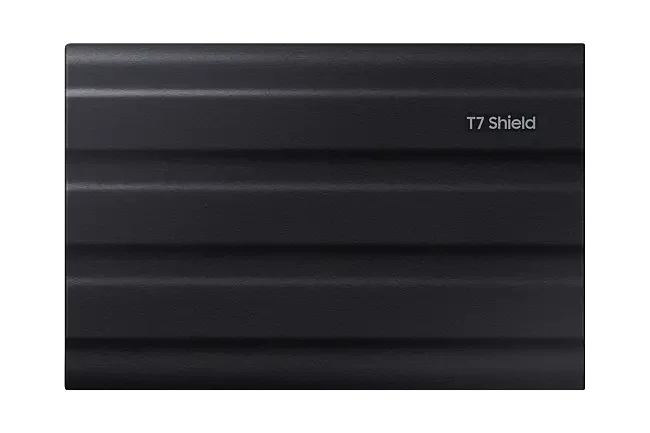
The T7 Shield's main advantage is its IP65 rating, which Samsung attributes to testing under controlled conditions. Among the three drives here, that is the strongest published ingress rating. It fits people who shoot on location, carry a drive loose in a camera bag, or move files between a laptop and an editing desk in less-than-tidy conditions.
On performance, Samsung lists USB 3.2 Gen 2 at 10 Gbps, with up to 1050 MB/s read and 1000 MB/s write. That puts it in the same published speed class as the Kingston XS1000 and close to the Crucial X9 Pro's sequential figures. In everyday terms, this is a 10 Gbps class drive. It is well suited to moving photo shoots, project folders and large video files to and from a laptop with a matching port.
What to watch
- IP65 is not waterproof in the way many people mean it. It does not mean the drive can be submerged. Treat the rating as extra protection under the conditions it was tested for, not a licence to leave the drive in the rain.
- Warranty does not cover liquid or dust damage. Samsung excludes liquid and dust damage from warranty, even with the IP rating. The rating describes test performance. It is not a promise to replace a drive that fails after getting wet.
- Check the exact model name. Portable SSD names are easy to mix up in listings. The specifications here apply to the T7 Shield specifically, so make sure the listing says T7 Shield.
Crucial X9 Pro: best for large capacity
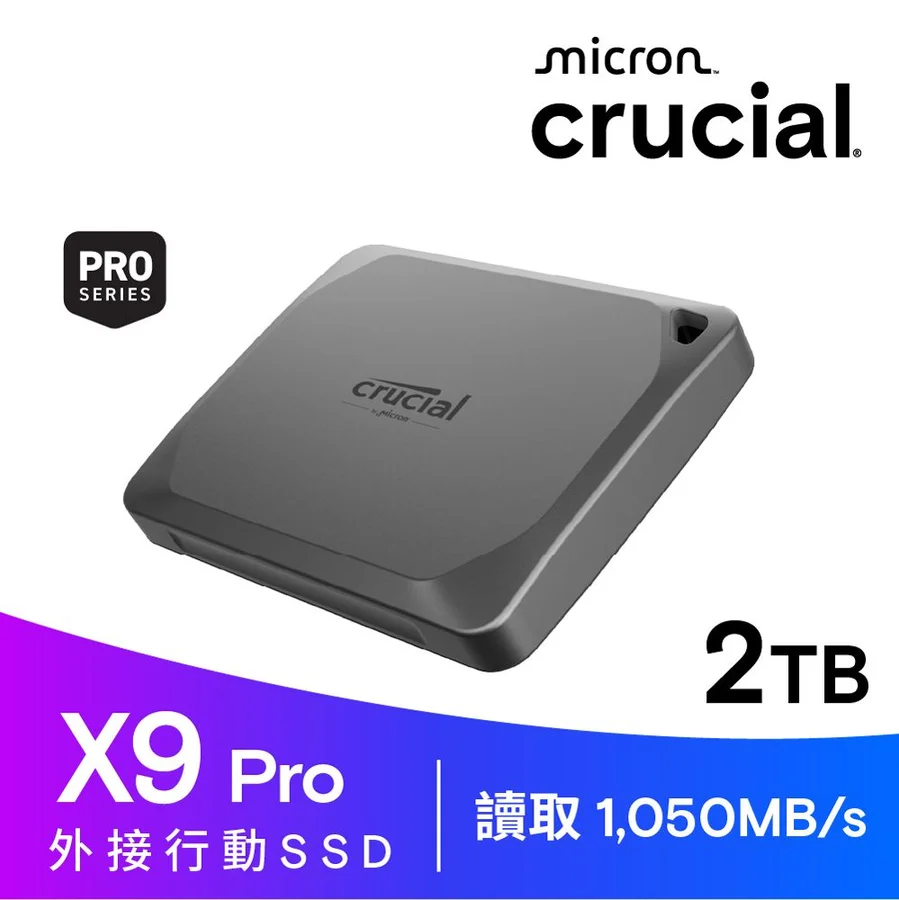
The X9 Pro stands out for capacity. Crucial lists models up to 4TB, which is the largest documented option in this group. If your goal is to keep a full photo catalogue, a game library or several active video projects on one portable drive, that headroom matters more than small differences in quoted speed.
Crucial publishes sequential read and write speeds up to 1050 MB/s, so the write figure matches the read figure. The drive connects over USB-C, uses Micron TLC NAND, and carries an IP55 rating. IP55 is a lower ingress rating than the T7 Shield's IP65, but it is still a published rating, which Kingston does not list for the XS1000.
What to watch
- X9 Pro and X9 are different products. Crucial sells both, and the names are easy to mix up in listings. The specifications above apply to the X9 Pro. Check the model name on the listing and the packaging.
- Confirm the USB generation on both ends. USB-C describes the connector, not the speed. Check Crucial's spec sheet for the X9 Pro's interface generation, then check your computer's port labels. Transfers near 1050 MB/s need a host port fast enough to carry them, which in practice means a 10 Gbps class port or better.
- A spec sheet doesn't prove stock. Crucial's datasheet lists what the line includes. It does not show which capacities a given retailer stocks right now. The 4TB tier in particular is worth confirming before you plan around it.
Kingston XS1000: best for lightweight carry
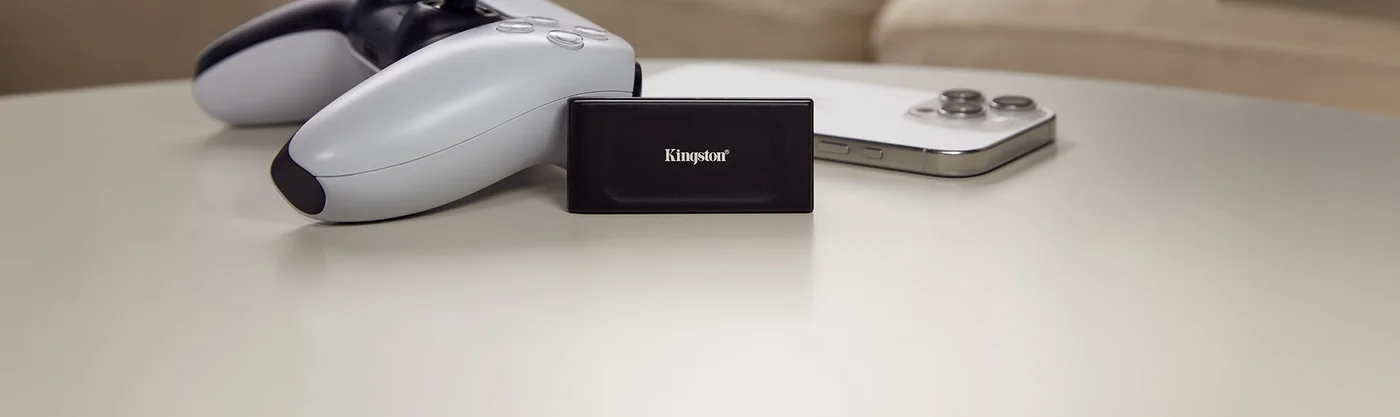
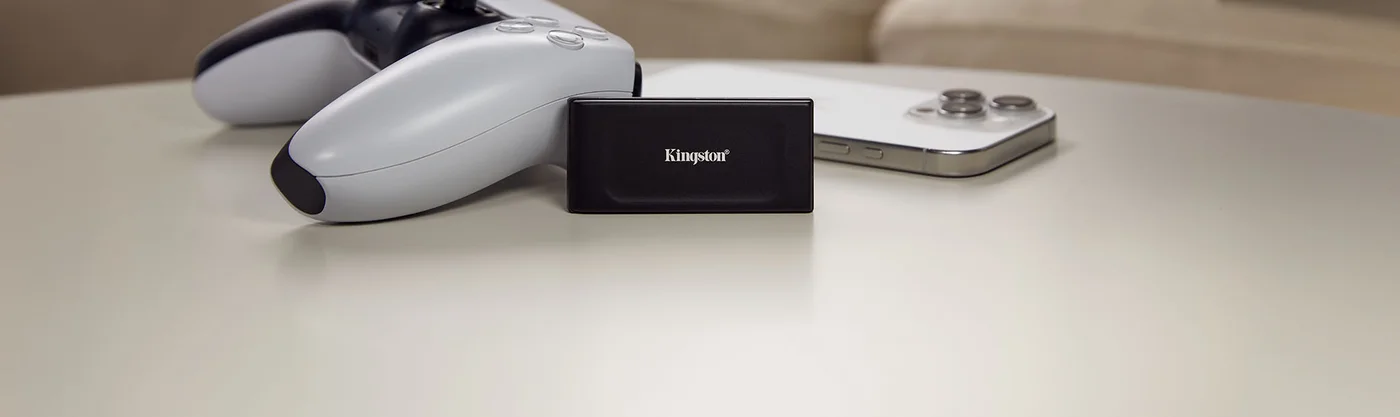
The XS1000 is the minimalist choice. Kingston lists it at 28.7 g, in 1TB and 2TB capacities, with USB 3.2 Gen 2 and up to 1050 MB/s read and 1000 MB/s write. Those are the same published speeds as the T7 Shield.
The practical bonus is in the box. Kingston includes a USB-C-to-A cable and an A-to-C adapter. If you move between an older desktop with only USB-A ports and a newer laptop with USB-C, that saves you from buying an extra cable or a dongle on day one.
What to watch
- No IP rating listed. Kingston's own comparison lists no IP rating for the XS1000. Treat it as an everyday drive for a desk drawer or laptop sleeve, not for dusty or wet locations.
- Don't confuse it with the XS2000. The XS2000 is a different model, and its specifications do not apply to the XS1000. If a listing for the XS1000 mentions 2000 MB/s or an IP55 rating, it is describing the XS2000 or it has mixed the two up.
- Capacity ceiling. At 2TB maximum, it suits working files and travel backups better than archiving a large media library.
Trade-offs that actually separate these drives
Because the headline speeds are so close, the real differences sit elsewhere.
- Ruggedness. The T7 Shield lists IP65, the X9 Pro lists IP55, and the XS1000 lists no IP rating. If the drive will live in a camera bag or travel kit, that order is the one to care about. Keep the warranty point in mind as well: at least for the T7 Shield, the maker excludes liquid and dust damage, so a rating reduces risk but does not insure you.
- Capacity. The X9 Pro reaches up to 4TB. The XS1000 stops at 2TB. Leaving headroom now can save you from splitting files across two drives later, which makes it harder to keep track of what lives where.
- Weight and accessories. Kingston publishes a 28.7 g weight for the XS1000 and bundles a USB-C-to-A cable and an A-to-C adapter, which makes it easy to carry and plug into either port type. If weight matters to you, check the other two makers' spec sheets for their published figures before deciding.
- Write figures. The X9 Pro quotes the same maximum for read and write. The T7 Shield and XS1000 quote 1000 MB/s for write. In practice, your port, cable and file sizes will usually matter more than a 50 MB/s difference on paper.
- Published maximums are best-case numbers. Sequential maximums describe large, continuous transfers on a capable host. Thousands of small files, a slower port or a cheap cable will all bring real-world speed down, and that applies to every drive here.
Compatibility checklist
Most disappointment with an external SSD comes from the computer side, not the drive. Before you buy, work through this list. If your laptop's ports are a mystery, our laptops and connectivity guides explain how to read port labels and specs.
- Identify your port speed. To approach the speeds quoted here, you need a 10 Gbps port, often labelled USB 3.2 Gen 2 or marked with a 10 Gbps logo. A 5 Gbps port will hold transfers well below these quoted maximums, and older USB 2.0 ports will be far slower still.
- Check the connector shape. USB-C and USB-A are physical shapes, not speeds. A USB-C port can still be slow. Look up the port's rated speed, not just its shape.
- Use a capable cable. Some USB-C cables, especially ones bundled with phones, are built for charging and run data at USB 2.0 speeds. If a cable comes in the box with your drive, start with that one. Otherwise use a cable rated for 10 Gbps data. Check the box contents for each drive, because the cable bundle varies by model.
- Plug in directly when you can. Hubs, docks and monitor USB ports often share bandwidth or run at lower speeds. If transfers seem slow, try a port on the computer itself.
- Plan the file system. If you move the drive between Windows and macOS, choose a format that both can read and write, and reformat before you copy anything important. Reformatting erases the drive.
- Check consoles and devices. If you plan to use the drive with a console, tablet or camera, check that device's support list for external storage and the formats it accepts.
How to buy an external SSD sensibly
Start with capacity, then ruggedness, then everything else. Add up what you need to carry today, then leave room for at least a year of growth. Video files and game installs in particular can take up space quickly.
Next, be honest about where the drive will live. A drive that stays beside a desktop does not need an IP rating. A drive that goes to shoots, festivals or long trips benefits from one. If it will stay on your desk, think about cable management and placement as well. Our desk setup section covers keeping peripherals tidy and within reach of the right ports.
Then confirm the exact generation. Similar names are the most common trap: the X9 sits alongside the X9 Pro, and the XS1000 sits alongside the XS2000. Don't assume the T7 Shield shares specifications with any other Samsung portable drive. Specifications don't carry over between models, so match the full model name on the listing to the one you researched.
Finally, think about backup separately. An external SSD on its own is not a complete backup strategy. If your only copy of a project sits on a portable drive, it is one drop, theft or failure away from being lost. A sounder approach keeps at least one more copy somewhere else, such as an internal drive, a second external drive or another location. For internal options to pair with a portable drive, browse our components and storage coverage.
To sum up: pick the T7 Shield for travel, the X9 Pro when capacity matters most, and the XS1000 when you want something light that works with both port types. Check today's price, check your port speed, and keep a second copy of anything you can't afford to lose.
Frequently asked questions
Which external SSD is fastest of these three?
On paper, they are very close. The T7 Shield and XS1000 list up to 1050 MB/s read and 1000 MB/s write, and the X9 Pro lists sequential read and write up to 1050 MB/s. These are manufacturer maximums. Your port speed, cable and file sizes will affect real transfers more than the small gap between them.
Is the Samsung T7 Shield waterproof?
Not in the sense of being safe underwater. Its IP65 rating applies to controlled test conditions and does not mean the drive can be submerged. Samsung also excludes liquid and dust damage from warranty, so treat the rating as added protection, not a guarantee.
Why is my external SSD slower than the advertised speed?
The most common causes are a 5 Gbps or USB 2.0 port, a charging-only or low-speed cable, or a hub that shares bandwidth. Many small files also transfer more slowly than one large file. Plug the drive directly into a 10 Gbps port on the computer, using a cable rated for 10 Gbps data, such as one supplied with the drive.
Can an external SSD be my only backup?
It shouldn't be. A single portable drive can be lost, damaged or fail. Keep at least one more copy of important files in a separate place, such as an internal drive, a second external drive or another location.
Research-led guides for better PC setups. Read how we select and check gear.