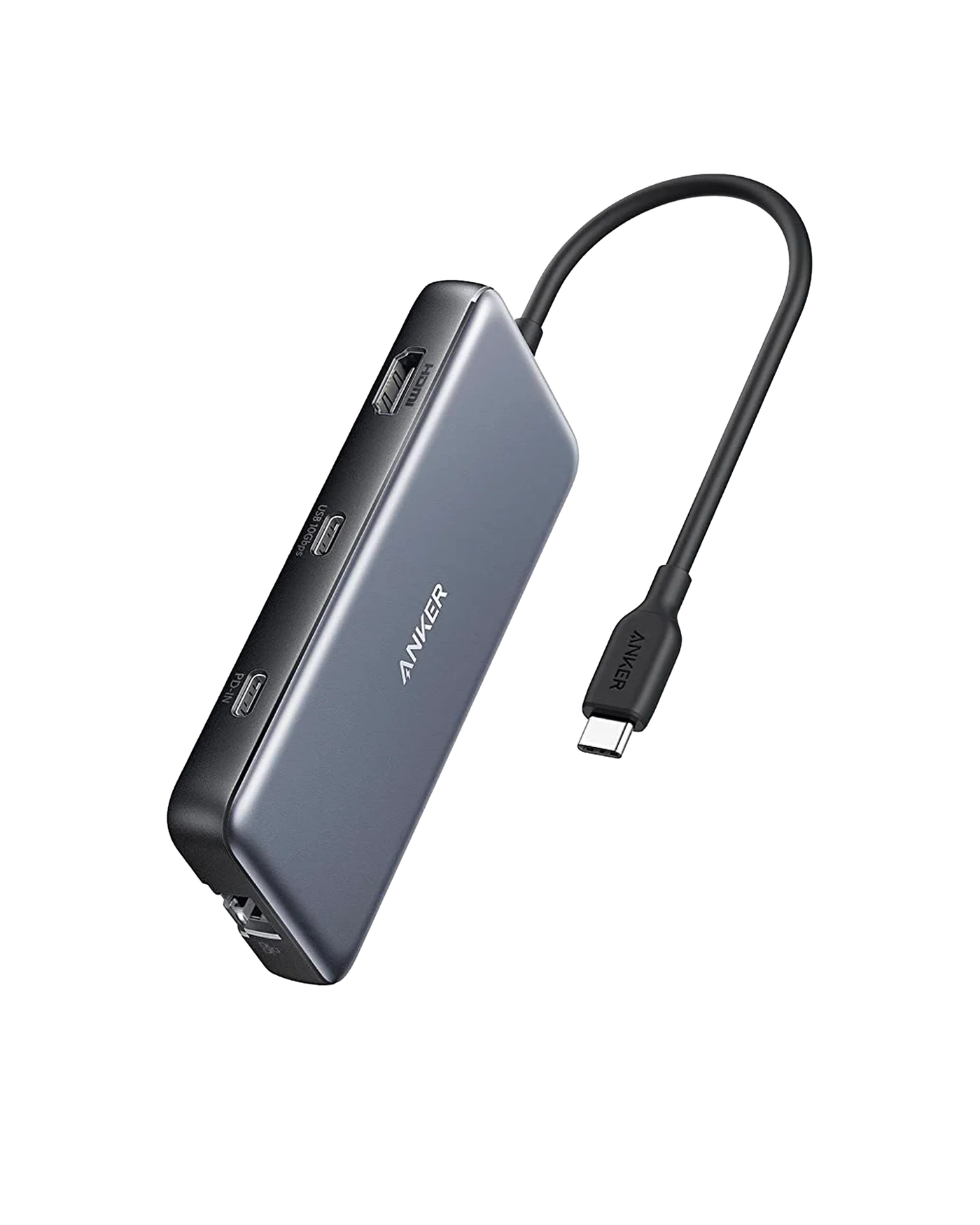
For one 4K monitor, Ethernet, card readers and charging, start with the Anker 555 A8383. For two external displays, consider the Anker 556 USB4 8-in-1. For basic ports and a headphone jack at 4K30, the Belkin Connect AVC009 fits. Always confirm your laptop's USB-C port supports video, charging and the data speed you need.
If you want one hub that handles a 4K monitor, wired internet, card readers and laptop charging, start with the Anker 555 A8383. Its manufacturer specifications list HDMI up to 4K60, Gigabit Ethernet, SD and microSD readers, 10 Gbps USB data and up to 85W of pass-through charging from a 100W input. If you need two external displays, look at the Anker 556 USB4 8-in-1. If you only need basic ports and a headphone jack, and a 4K30 picture is acceptable, the Belkin Connect AVC009 is the simpler choice.
These recommendations are based on published manufacturer specifications, not on our own testing. Keep one point in mind throughout this guide: a USB-C connector tells you very little by itself. Whether you get a picture, how fast your drives run and how much power reaches your laptop depend on the port on your computer as much as on the hub.
Quick picks
| Product | Best for | Documented strength | Check before buying |
|---|---|---|---|
| Anker 555 A8383 | One 4K monitor plus Ethernet and card readers | HDMI up to 4K60, two USB-A and one USB-C data port rated 10 Gbps, Gigabit Ethernet, up to 85W to laptop | 4K60 needs a DP 1.4 host (DP 1.2 hosts are limited to 4K30); charger not included |
| Belkin Connect AVC009 | Basic port expansion with a 3.5 mm audio jack | HDMI, two USB-A, SD and microSD, audio jack, up to 100W PD input supported | HDMI tops out at 4K30; data bandwidth is 5 Gbps; the hub itself needs 15W |
| Anker 556 USB4 8-in-1 | Two external displays from one cable | HDMI and DisplayPort, dual 4K60 or single 8K30, 10 Gbps USB-C data port, up to 85W to laptop | Confirm your laptop and operating system support two external displays |
Anker 555 A8383: best all-rounder for one monitor
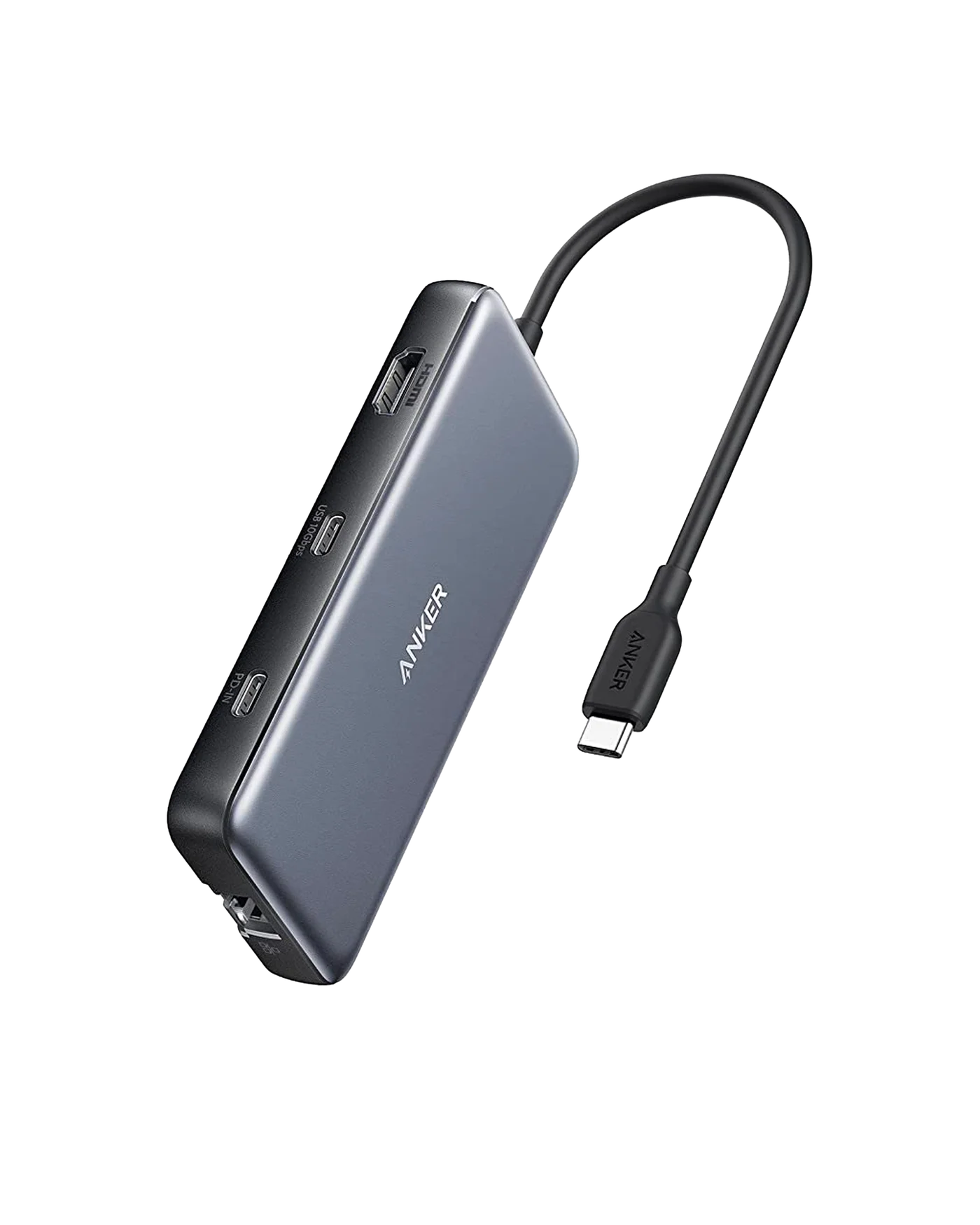
The Anker 555 suits anyone who docks a laptop at a desk and wants most of the common ports from one cable. Anker lists an HDMI output rated up to 4K60, two USB-A ports and one USB-C data port rated at 10 Gbps, Gigabit Ethernet, and SD and microSD readers rated UHS-I. Power comes in through a 100W USB Power Delivery input, and Anker states up to 85W reaches the laptop.
What to watch for
The 4K60 figure has a condition attached. Anker's documentation says 4K60 requires a host that supports DisplayPort 1.4. On a host limited to DisplayPort 1.2, output drops to 4K30. That works for documents and spreadsheets but feels less smooth when you move windows or scroll. Your laptop's specification sheet should state its DisplayPort Alt Mode version, or at least its maximum supported external resolution and refresh rate.
Two other details matter. The USB-C data port does not output video, so you cannot plug a USB-C monitor into it and expect a picture. And no charger is included, so you need your own USB-C PD charger to use pass-through charging.
- Good fit: a single 4K monitor, a wired network connection and regular use of camera cards.
- Look elsewhere: if you want two external displays, or if your laptop needs more than 85W under heavy load.
Belkin Connect AVC009: best for basic expansion and wired audio
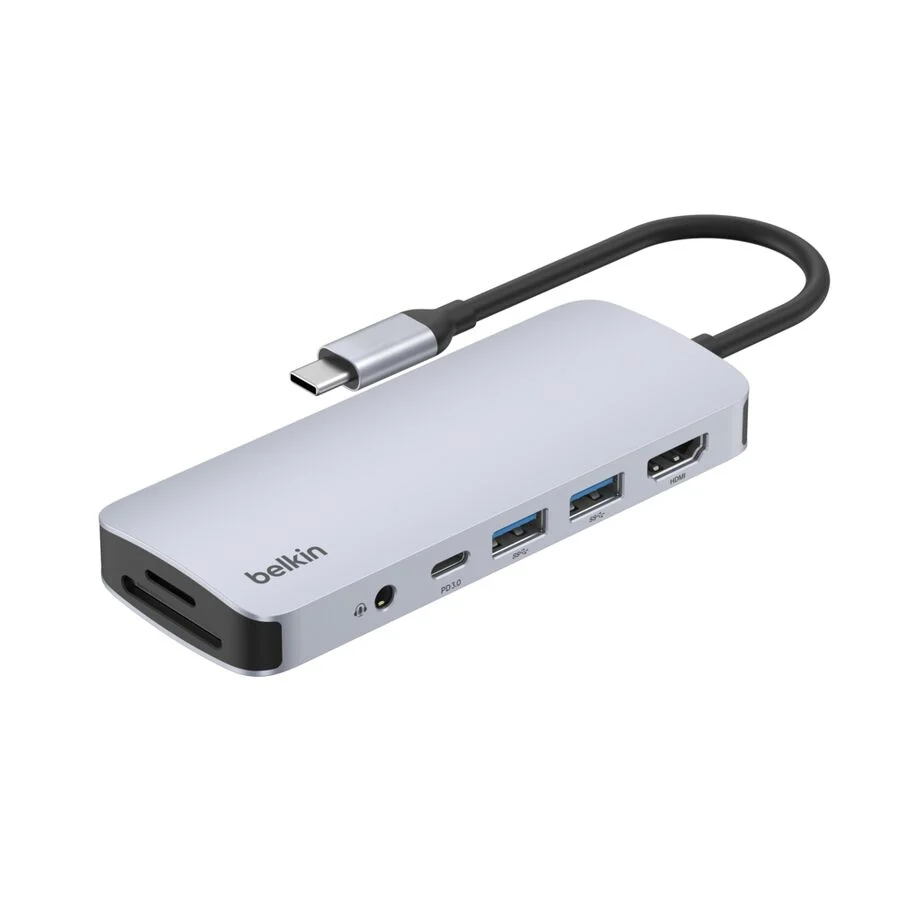
The Belkin Connect AVC009 is a seven-port hub with HDMI, two USB-A ports, a USB-C Power Delivery input, a 3.5 mm audio jack, and SD and microSD readers. The Anker 555's listed ports do not include an audio jack. If you are weighing the Anker 556 instead, check its full port list for one. A headphone jack on the hub helps if your laptop lacks one or you prefer to keep a wired headset plugged into the hub.
What to watch for
Belkin rates the HDMI output at a maximum of 4K30 and the data bandwidth at 5 Gbps. That combination suits a monitor for office work, keyboards, mice, flash drives and occasional photo transfers. It is a weaker match for high-refresh-rate displays or frequent large file copies to fast external storage.
On power, Belkin publishes input support up to 100W and notes that the hub itself requires 15W. Do not read that as 100W reaching your laptop. Belkin does not publish a laptop output figure, and the power left for your computer depends on your charger and on what the hub draws. Plan for less than the charger's rating.
Belkin's port list also describes the USB-C port as a power input. If you need a spare USB-C data port for accessories, confirm the full specification before buying. For a display, your laptop's USB-C port must support video output.
- Good fit: light desk or travel use, a 4K monitor at 30Hz or a lower-resolution monitor within the hub's listed output, wired audio and card reading.
- Look elsewhere: if you need 4K60, Ethernet or data faster than 5 Gbps.
Anker 556 USB4 8-in-1: best for dual displays
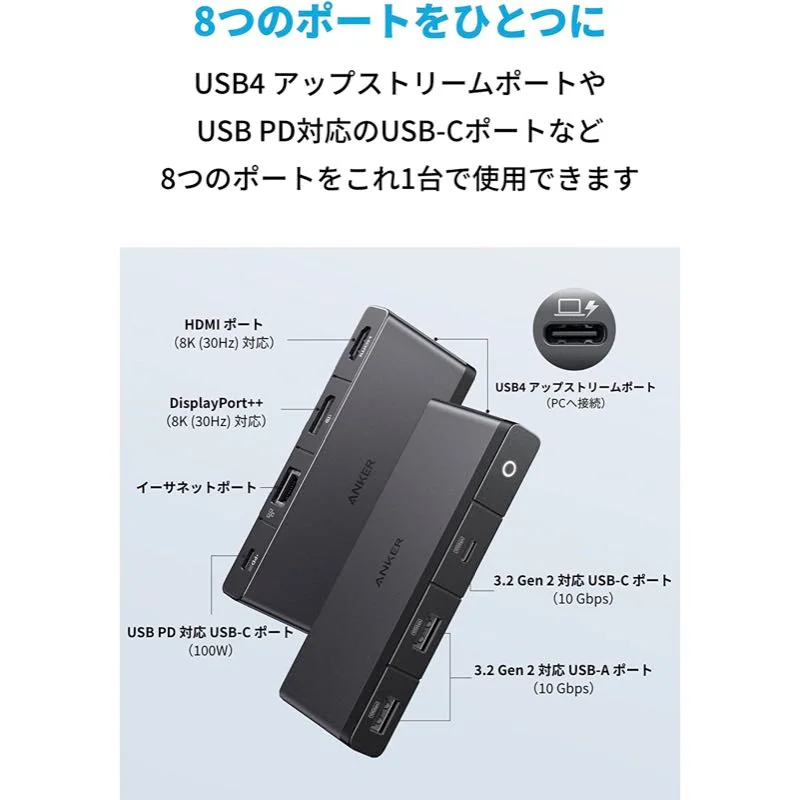
The Anker 556 is the pick if one external screen is not enough. Anker lists both HDMI and DisplayPort outputs and specifies either dual 4K60 or a single 8K30 display. It also has a downstream USB-C data port rated at 10 Gbps. It shares the 555's power figures: 100W PD input with up to 85W charging to the laptop.
What to watch for
Dual-display output is where host compatibility matters most. Anker's own guidance says to check exact host and operating system display support, and it says dual displays are not a universal promise for every Mac. Some laptops support only one external display regardless of the hub. Check how many external displays your specific model supports before paying for a dual-output hub.
Because this is a USB4 hub, also confirm how your laptop's port is identified, for example as USB4 or another standard that supports video. As with the 555, the USB-C downstream data port does not output video.
This guide covers the 556's display, data and charging specifications. If you also need Ethernet, card readers, a headphone jack or a particular number of USB-A ports, check the full port list on the product page, packaging or manual before buying. Do the same for the charger: check the box contents rather than assuming one is included.
- Good fit: two monitors on a laptop that officially supports two external displays.
- Look elsewhere: if your laptop supports only one external display, since you would be paying for output you cannot use.
Why two hubs with the same plug behave differently
Video depends on the host
A hub cannot create video output your laptop does not provide. The laptop's USB-C port needs to support DisplayPort Alt Mode, or carry video through USB4 or Thunderbolt. The version it supports caps resolution and refresh rate. That is why the Anker 555 can deliver 4K60 on one laptop and 4K30 on another. Some laptops and tablets have USB-C ports that carry only data and charging, so check before assuming a hub's HDMI port will work.
Bandwidth is shared
Everything on a hub travels back to the laptop through one cable. A 10 Gbps rating describes what a port is rated to reach, not what each port gets while the others are busy. If you copy files to an external SSD while also using Ethernet and a card reader, those devices compete.
For fast drives, the ports Anker rates at 10 Gbps have more rated headroom than the Belkin's 5 Gbps. On the 555, that covers the two USB-A ports and the USB-C data port. On the 556, it is the downstream USB-C data port. If you are choosing external storage to pair with a hub, browse our components and storage coverage and match the drive's rated speed to the port you plan to use.
Charging loses some power to the hub
Pass-through charging is not one-to-one with these hubs. Both Anker hubs accept 100W in and are rated to send up to 85W to the laptop. Belkin says its hub needs 15W for itself but does not publish a laptop output figure.
If your laptop ships with a 100W charger, it may charge more slowly through any of these hubs, and its battery may drain under heavy load. If your laptop's own charger is rated at 85W or less, it falls within the Anker hubs' stated laptop output. For the Belkin, check your laptop's charging behaviour after connecting it.
Compatibility checklist
Run through these checks against your laptop's specification sheet before buying. Our laptop connectivity coverage is a good place to start if port labels and spec tables are unclear.
- Video support on the port. Confirm the specific USB-C port you will use supports display output. Some laptops support video on only one of their USB-C ports.
- DisplayPort version or maximum external resolution. For 4K60 on the Anker 555, you need a DP 1.4-capable host.
- Number of external displays supported. Essential for the Anker 556. Check your exact model and operating system.
- Your laptop's charging requirement. Compare its stock charger wattage with the 85W ceiling on the Anker hubs. For the Belkin, treat 100W as the supported input, not the power delivered to the laptop. The hub needs 15W for itself, and Belkin does not publish a laptop output figure.
- A suitable charger. Anker states the 555 does not include a charger. For the Belkin and the Anker 556, check the box contents. Use a USB-C PD charger rated for the hub's input.
- Monitor inputs. All three have HDMI, and the Anker 556 adds DisplayPort. Check that your monitor's inputs and cables match.
- Data speed needs. The Belkin is rated at 5 Gbps. Anker rates the 555's USB-A and USB-C data ports and the 556's USB-C data port at 10 Gbps. Match this to your drives and how often you move large files.
- Ports you actually use. Count your USB-A devices, and decide whether you need Ethernet, a headphone jack or card readers. For the Anker 556, confirm these against its full port list.
Trade-offs and buying advice
Do not pay for display output you cannot use. The Anker 556's dual-display support is its main advantage. If your laptop drives only one external screen, the Anker 555 covers that need with Ethernet and card readers included.
Treat 4K30 as a working-resolution choice, not a defect. The Belkin's 4K30 cap is fine for static office work. It becomes a real compromise if you want smooth motion on a 4K screen. If you use a lower-resolution monitor, confirm the refresh rate Belkin lists at that resolution rather than assuming it.
Think about where the hub lives. A hub that stays on a desk benefits from Ethernet and pass-through charging. One that travels in a bag mainly needs HDMI, USB-A and a card reader. If you are building a permanent workspace around a hub, see our desk setup guides.
Plan for power-hungry laptops. If your laptop draws close to 100W while gaming or rendering, a hub with an 85W pass-through limit may not keep up. In that case, a dedicated dock or charging the laptop directly may suit you better.
Keep video off the USB-C data port. On both Anker hubs, the downstream USB-C port is for data only. Use HDMI or DisplayPort for monitors.
How we chose these picks
We selected these three hubs because their manufacturers publish clear specifications for video output, data bandwidth and charging, along with the conditions attached to each figure. We compared them on those published numbers and on how well they fit common setups: one 4K monitor, two monitors, or simple port expansion.
We have not tested these hubs, so this guide does not rank them on measured performance, heat or reliability. All figures here are manufacturer ratings. Our editorial policy explains how we research and present specification-based recommendations.
Prices change frequently, so check current pricing before buying. Also confirm the exact model number (A8383 or AVC009, for example), because similarly named hubs can have different specifications.
Frequently asked questions
Will any USB-C hub let me connect a monitor?
No. Your laptop's USB-C port must support video output, usually through DisplayPort Alt Mode, USB4 or Thunderbolt. If the port only carries data and charging, a hub's HDMI port will not show a picture. Check your laptop's specification sheet for the exact port.
Why does my laptop charge slower through a hub?
Hubs use some power themselves. The Anker 555 and 556 accept 100W but are rated to pass up to 85W to the laptop. Belkin says the AVC009 needs 15W for itself and does not publish a laptop output figure. If your laptop expects a 100W charger, it may charge more slowly through a hub.
Why is my 4K monitor running at 30Hz through the Anker 555?
Anker states that 4K60 requires a host that supports DisplayPort 1.4. On a DisplayPort 1.2 host, output is limited to 4K30. Check which DisplayPort version your laptop's USB-C port supports.
Can the Anker 556 run two monitors on any laptop?
Not necessarily. Anker specifies dual 4K60 output but advises checking exact host and operating system support, and dual displays are not guaranteed on every Mac. Confirm how many external displays your laptop model supports first.
Research-led guides for better PC setups. Read how we select and check gear.