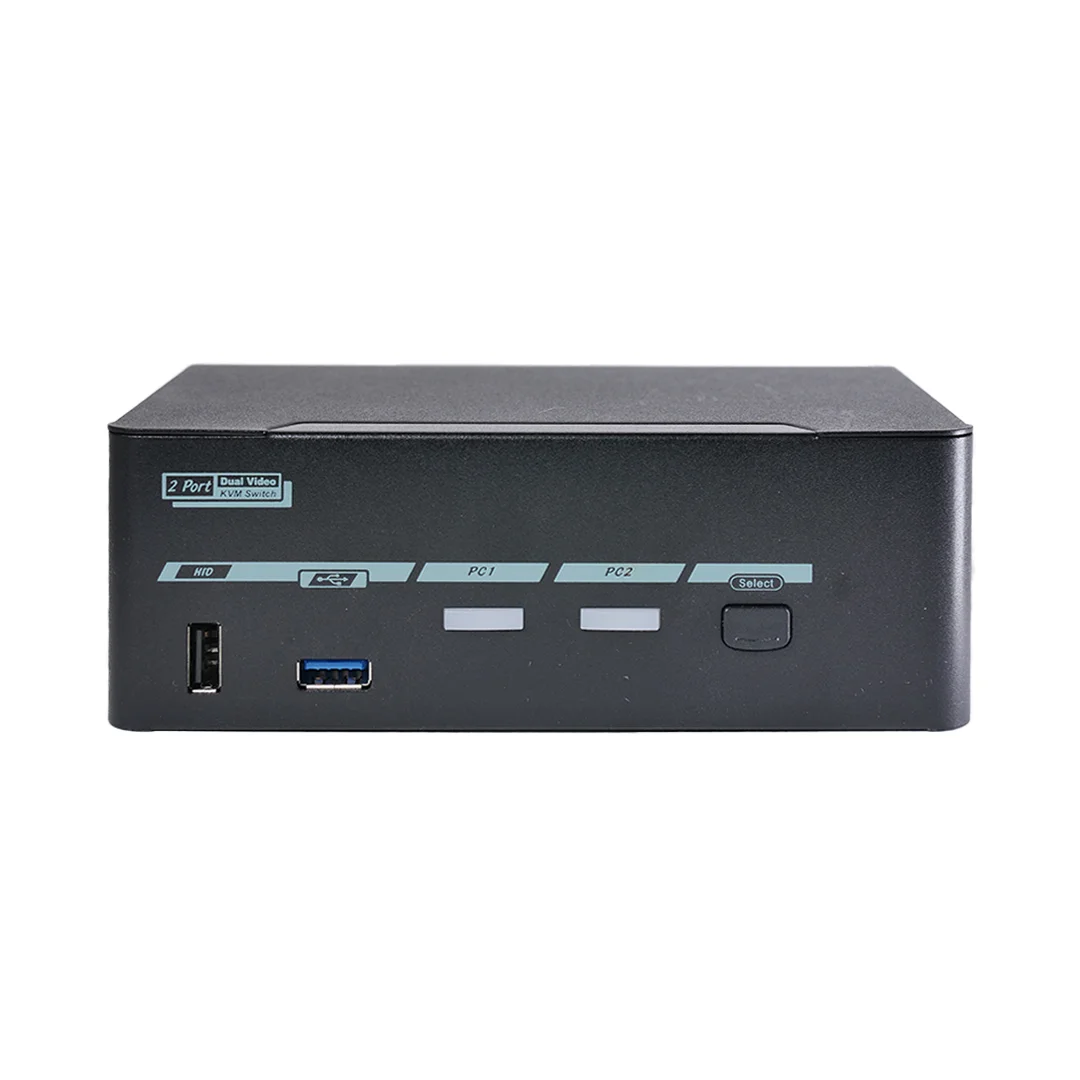
For two computers sharing one HDMI monitor, the ATEN CS22H is the simplest fit. For a USB-C laptop plus an HDMI desktop, choose the StarTech SV221HUC4K. For two monitors or 4K above 60 Hz, the Level1Techs DisplayPort 1.4 dual-monitor KVM is the only pick here that publishes those modes.
If two computers share one HDMI monitor and you want the fewest parts on the desk, start with the ATEN CS22H. If one of those computers is a laptop that outputs video over USB-C, the StarTech SV221HUC4K is the more direct match because one of its host inputs is USB-C with DisplayPort Alt Mode. If you run two monitors, or you want 4K at more than 60 Hz, the Level1Techs DisplayPort 1.4 Dual Monitor / Two Computer KVM is the only switch in this group whose published specifications cover that.
These recommendations are based on manufacturer specifications, not measured rankings. We have not tested these units, and nothing below describes hands-on results. Where we cite a resolution, refresh rate or feature, treat it as the manufacturer's rated or published claim. Our editorial policy explains how we put buying guides like this together.
Quick picks
| Product | Best for | Documented strength | Check before buying |
|---|---|---|---|
| ATEN CS22H | Two HDMI computers sharing one monitor | Published maximum video mode of 4096×2160 at 60 Hz; switching via a remote port selector | That the listing is the CS22H and not the CS22HF, which has a lower maximum resolution |
| StarTech SV221HUC4K | A USB-C laptop plus an HDMI desktop on one display | One USB-C host with DisplayPort Alt Mode and one HDMI plus USB host; host cables included; USB bus-powered | That your laptop's USB-C port supports DisplayPort Alt Mode; it drives only one HDMI monitor |
| Level1Techs DisplayPort 1.4 Dual Monitor / Two Computer KVM | Two computers sharing two monitors, including high-refresh 4K | Published modes up to 4K120 or 8K30; Display Stream Compression supported; USB 3.2 peripherals and USB 2.0 HID devices | Cable quality, monitor and GPU support for your target mode, and which USB interface variant you are ordering |
What a KVM switch actually switches
KVM stands for keyboard, video and mouse. A true KVM switch moves your display signal and your USB peripherals from one computer to another in a single action. That distinction matters because many products sold near KVMs are USB switches only. A USB switch will move your keyboard, mouse and maybe a webcam between machines, but your monitor stays on whatever input it was on. You still reach for the monitor's input button every time. If that is acceptable, a USB switch can be enough. If you want one press to change everything, you need video switching too.
Four questions narrow the field quickly:
- How many computers? All three picks here are two-computer switches.
- How many displays? The ATEN and StarTech models switch one monitor. The Level1Techs model switches two.
- Which connectors? HDMI, DisplayPort and USB-C with DisplayPort Alt Mode are not interchangeable without adapters, and adapters add their own limits.
- What resolution and refresh rate? A switch that tops out at 4K60 will hold back a 4K monitor rated for 120 Hz or more.
If you are still planning the rest of the workspace, decide where the switch will physically sit before you buy. Our desk setup guides can help with that. The switch's position decides cable lengths, whether you can reach a button on the unit, and how tidy the desk stays once two computers and their peripherals are connected.
ATEN CS22H: simple HDMI switching for two computers
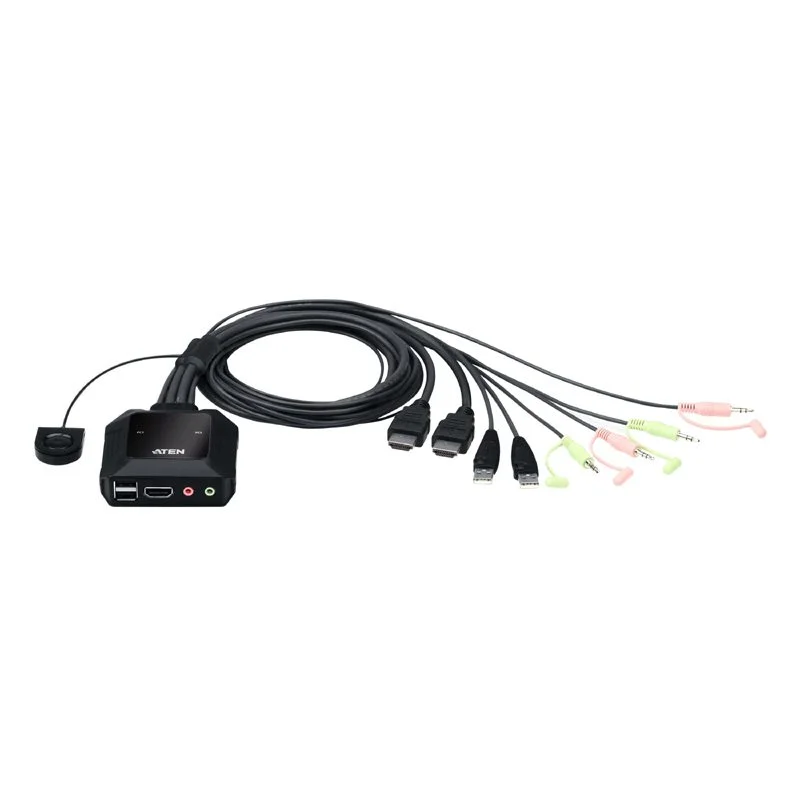
The ATEN CS22H is a two-computer USB and HDMI cable KVM. Its published maximum video mode is 4096×2160 at 60 Hz. If your monitor uses a different 4K format, such as 3840×2160, confirm on ATEN's datasheet that your exact mode is supported. Switching happens through a remote port selector rather than a button you must reach on the switch body.
Why it fits
This is the straightforward choice when both computers have HDMI outputs and you have one monitor. In a home office where a work desktop and a personal desktop share one 4K screen at 60 Hz, the specification sheet lines up well with the job.
Check before buying
- Model name. ATEN also sells the CS22HF. It is a different product with a lower maximum resolution, so do not assume the two share specifications. Confirm the exact model on any listing.
- Refresh ceiling. The published maximum is 60 Hz at 4096×2160. If your monitor is a high-refresh gaming panel, ATEN's published specifications do not cover those faster modes.
- USB connection and reach. Check ATEN's datasheet for the USB connector type, the cable configuration and the cable lengths, including how far the remote port selector can sit from the switch. Then measure the distance from each computer to where the switch will sit and confirm the cables reach.
StarTech SV221HUC4K: laptop and desktop on one screen
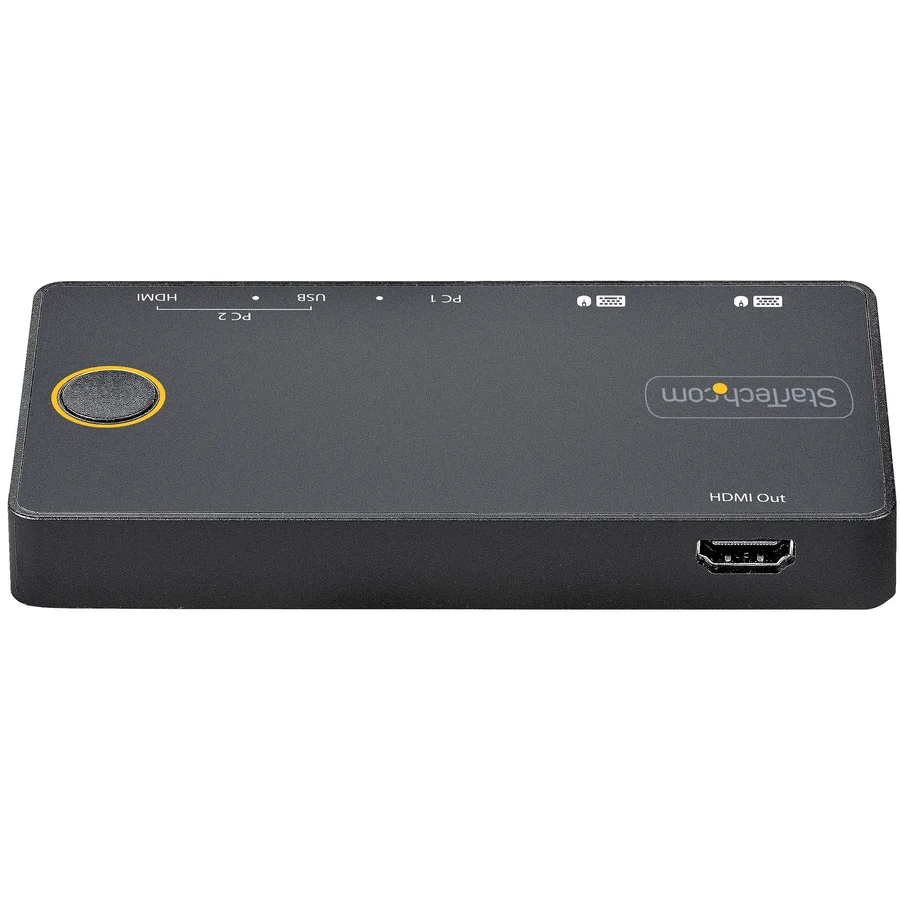
The StarTech SV221HUC4K is built for a mixed setup. One host input is USB-C with DisplayPort Alt Mode, and the other is HDMI plus a USB connection. It has one HDMI output with a published maximum of 3840×2160 at 60 Hz. It is USB bus-powered, uses push-button switching, and includes the host cables.
Why it fits
Many people switch between a company laptop and a personal desktop. The laptop often has USB-C video output and few other ports, while the desktop has HDMI. This switch matches that pairing without a separate USB-C to HDMI adapter on the laptop side. Because it is USB bus-powered, it draws its power over USB rather than from a separate power supply. The included host cables mean fewer extra purchases.
Check before buying
- DisplayPort Alt Mode. Not every USB-C port carries video, and the laptop's USB-C port must support DisplayPort Alt Mode. Check the laptop manufacturer's specifications, or look for a DisplayPort or Thunderbolt marking next to the port and then confirm in the documentation.
- One display only. This is not a dual-monitor KVM. If you plan to add a second screen later, this switch will not grow with you.
- Charging. Check StarTech's datasheet to see whether the switch passes power to the laptop. If laptop charging is not listed, plan to keep the laptop's own charger connected.
Before you rely on a laptop's USB-C port for this switch, remember that USB-C describes the connector shape, not what the port carries. Two identical-looking ports on the same laptop can differ in whether they output video, so check each one. Our laptops and connectivity coverage goes deeper on USB-C port capabilities.
Level1Techs DisplayPort 1.4: two monitors and high refresh
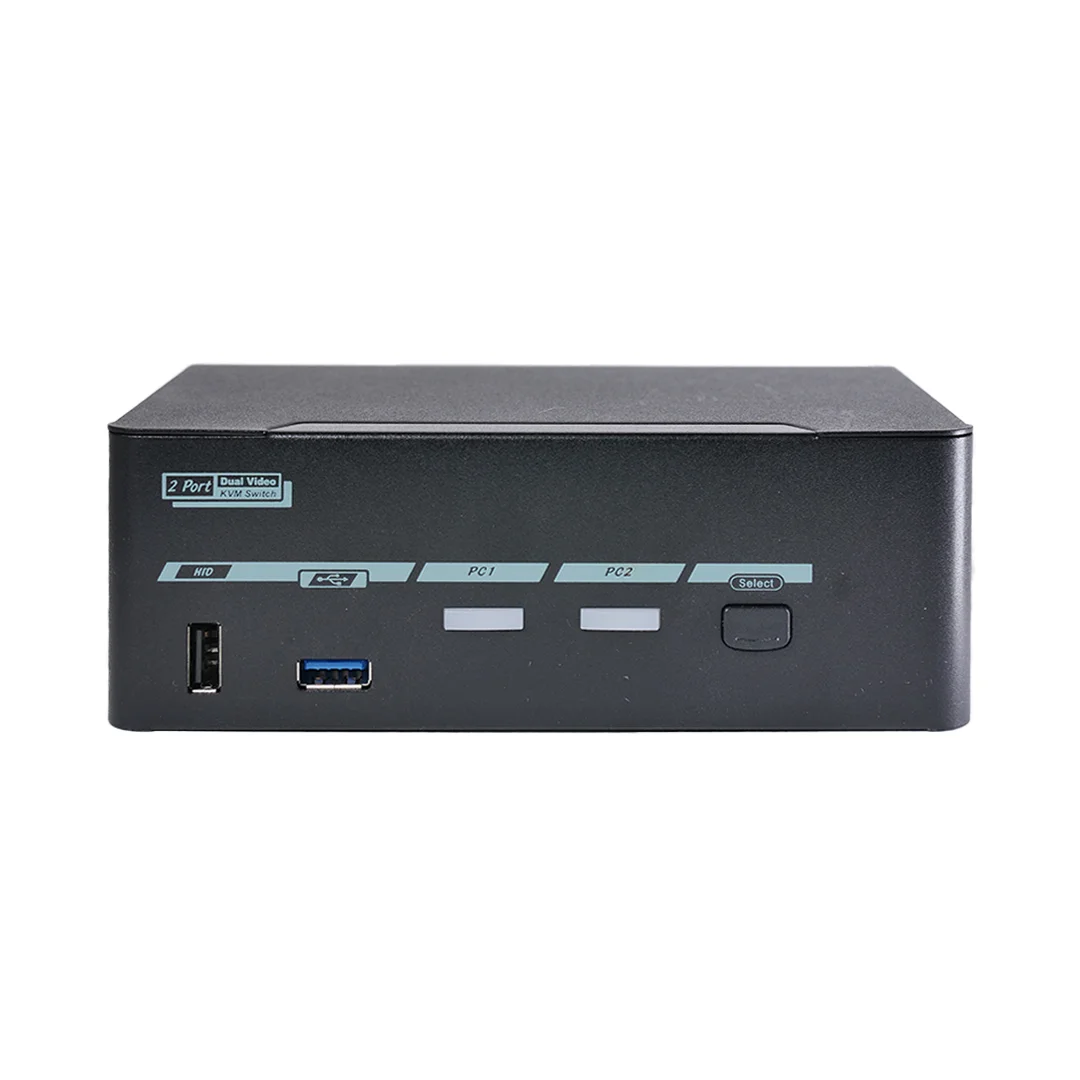
The Level1Techs DisplayPort 1.4 Dual Monitor / Two Computer KVM shares two monitors and your USB peripherals between two computers. Its published modes include up to 4K at 120 Hz or 8K at 30 Hz, and it supports Display Stream Compression. It works with USB 3.2 peripherals and USB 2.0 HID devices.
Why it fits
Of the three switches in this guide, this is the only one that handles two monitors and the only one that publishes a 4K mode above 60 Hz. If you run two high-resolution or high-refresh monitors from each of two computers, this is the pick that addresses that setup directly. Check that each computer has two video outputs matching the switch's inputs. USB 3.2 peripheral support is useful if you move external storage or a fast webcam between machines, not just a keyboard and mouse.
Check before buying
- Bandwidth is the real limit. Bandwidth, cables and display compatibility all constrain which modes actually work. Published maximums assume everything in the chain supports them.
- Display Stream Compression. The switch supports DSC. If the mode you want relies on DSC, your graphics card and your monitor need to support it as well.
- No overclocking. The manufacturer says overclocking is not supported. If your monitor's top refresh setting is an overclock mode, plan around its standard rated mode.
- USB interface variant. Verify which USB interface variant you are ordering, and confirm it matches the ports on your computers.
- Connectors and box contents. Confirm the switch's input and output connectors against your computers and monitors. Check the listing to see which cables are included.
- Exact product. This guide refers specifically to the DisplayPort 1.4 dual-monitor, two-computer model. Match the full product name on the listing so you get the configuration described here.
Trade-offs that matter
Simplicity versus headroom. The ATEN and StarTech switches each handle one display at up to a 60 Hz 4K mode, which is all many office setups need. The Level1Techs model adds a second monitor and higher refresh, but it also asks more of your cables, GPU and monitors.
Connector fit versus adapters. Choosing a switch whose inputs already match your computers avoids adapters. The StarTech model is aimed at the USB-C laptop case without an adapter. Forcing an HDMI switch onto a DisplayPort-only machine with an adapter can work, but it introduces another part whose supported modes you must verify.
Switching method. The ATEN uses a remote port selector and the StarTech uses a push button. A remote selector helps if the switch sits behind the monitor or under the desk. A push button is fine if the switch sits within reach.
What comes in the box. The StarTech includes host cables. For the ATEN, confirm the cable configuration on its datasheet. For the Level1Techs model, check the listing for included cables. If DisplayPort cables are not included, budget for cables rated for the mode you want. That cable choice directly affects whether 4K120 is achievable.
Price. We have not listed prices because they change. Check the current price from the retailer you choose, and compare it against the cost of any cables or adapters you would need.
Compatibility checklist
- Count your computers. All three picks support two.
- Count your monitors. For one monitor, choose the ATEN CS22H or StarTech SV221HUC4K. For two monitors, choose the Level1Techs model.
- List each computer's video outputs: HDMI, DisplayPort or USB-C. For USB-C, confirm DisplayPort Alt Mode support.
- List each monitor's inputs and the resolution and refresh rate you actually use.
- Compare that mode against the switch's published maximum: 4096×2160 at 60 Hz for the CS22H, 3840×2160 at 60 Hz for the SV221HUC4K, and up to 4K120 or 8K30 for the Level1Techs model. Confirm that your exact mode is listed as supported.
- For modes that rely on DSC, confirm DSC support on both the graphics card and the monitor.
- Confirm each computer has the USB connection the switch needs, including the Level1Techs USB interface variant.
- Measure cable runs from each computer to the switch and from the switch to the monitors.
- Confirm the exact model number on the listing, especially CS22H versus CS22HF.
How to choose for your desk
Start with the display, not the switch. Write down the exact resolution and refresh rate you run today and the one you expect to run on your next monitor. If you expect to upgrade your monitor while keeping the same switch, buying only for today's 60 Hz panel could mean replacing the switch later.
Next, look at your peripherals. A basic keyboard and mouse are standard HID devices and are the simplest case. Keyboards and mice with companion software, macro features or multiple USB interfaces may behave differently through a switch's HID handling, so check how your specific devices connect. The Level1Techs model documents both USB 2.0 HID and USB 3.2 peripheral support, which gives you a clearer picture than a listing with fewer published USB details. If you are choosing new input devices alongside a KVM, plain wired devices with no special software are the least complicated starting point. Our keyboards and mice guides can help you narrow those down.
Think about how often you switch. If it is a few times a day, a push button on the unit is fine. If you switch constantly, a remote selector placed next to your keyboard is more comfortable.
Finally, keep expectations grounded in the documentation. A published maximum is the ceiling under ideal conditions, not a promise for every cable and monitor combination. Buy cables rated for your target mode and confirm GPU and monitor support up front. That is the most reliable way to land on a setup that works the first time.
Frequently asked questions
Is a USB switch the same as a KVM switch?
No. A USB switch moves keyboards, mice and other USB devices between computers, but it does not switch the video signal. A KVM switch moves both video and USB peripherals together, so the monitor follows the computer you select.
Which of these KVM switches supports two monitors?
Only the Level1Techs DisplayPort 1.4 Dual Monitor / Two Computer KVM. The ATEN CS22H and the StarTech SV221HUC4K each switch a single display.
Can I use the StarTech SV221HUC4K with any USB-C laptop?
Only if the laptop's USB-C port supports DisplayPort Alt Mode. Not all USB-C ports carry video, so check the laptop manufacturer's specifications before buying.
Will the Level1Techs KVM run my monitor at its maximum refresh rate?
It publishes modes up to 4K at 120 Hz or 8K at 30 Hz. Usable modes depend on bandwidth, cables, and monitor and GPU support, including Display Stream Compression. The manufacturer says overclocking is not supported.
Research-led guides for better PC setups. Read how we select and check gear.