For a fixed desk stream at 1080p60, the Elgato Facecam MK.2 is the focused choice if you have USB 3.0 and a separate mic. The Logitech MX Brio suits creators who also need 4K30 for work. The Razer Kiyo Pro Ultra adds autofocus, built-in mics and a tripod thread.
If you stream from a desk, sit at a consistent distance from the camera and want smooth motion, start with the Elgato Facecam MK.2. Elgato documents it for 1080p at up to 60 fps, with fixed focus from 30 to 120 cm. It has no built-in microphone, and its uncompressed output requires a USB 3.0 port, so confirm both before you commit. If you need 4K for work recordings as well as streaming, look at the Logitech MX Brio. If you move around, want autofocus or plan to mount the camera on a stand, the Razer Kiyo Pro Ultra is the more flexible option.
These recommendations are based on manufacturer specifications, not measured rankings. We have not tested these cameras ourselves, and nothing below is a claim about how one camera's image compares to another's in practice. Our editorial policy explains how we research and write guides like this one.
Quick picks
| Product | Best for | Documented strength | Check before buying |
|---|---|---|---|
| Elgato Facecam MK.2 | Fixed desk streams at 1080p60 | 1080p at up to 60 fps; fixed focus from 30 to 120 cm; 84-degree field of view; privacy shutter | USB 3.0 port for uncompressed output; separate microphone needed; HDR frame rate on current firmware |
| Logitech MX Brio | Creators who also do work calls or recordings | 4K at 30 fps or 1080p at 60 fps; marketed for collaboration and streaming | That the listing is the MX Brio, not the original Brio 4K or Brio 705; microphone, shutter, mounting and software details |
| Razer Kiyo Pro Ultra (RZ19-04420) | Flexible mounting and autofocus | 4K30, 1440p30 and 1080p60 modes; 8.3 MP autofocus lens; built-in shutter; USB-C port; microphones; 1/4-inch mounting thread | Configuration software and firmware support for your OS; no 4K60 mode |
Elgato Facecam MK.2: best for fixed desk streams
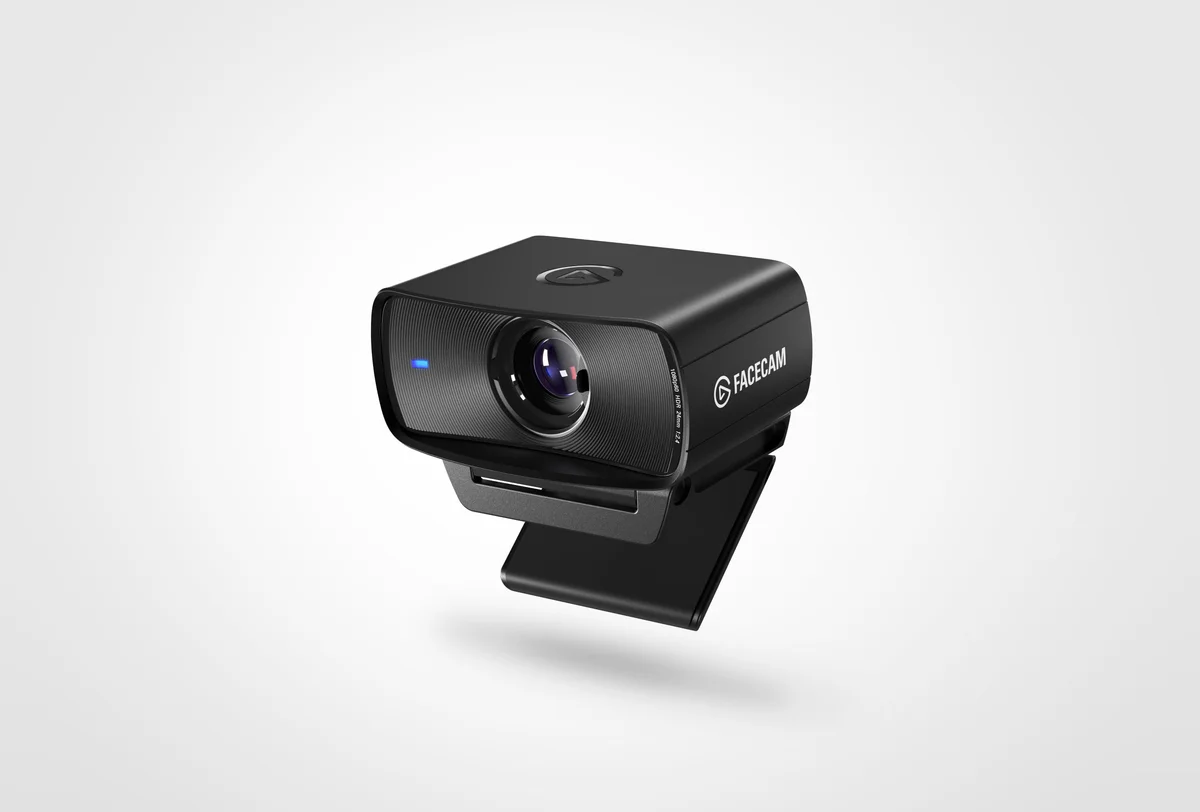
The Facecam MK.2 is the most narrowly focused of the three, and that is its appeal. Its documented output is 1080p at up to 60 fps, a common streaming resolution and frame rate. If you only ever send 1080p to your streaming software, a camera built around 1080p60 fits that workflow directly. If you want higher-resolution capture for recordings, check Elgato's official page for the current list of modes before you buy.
Why fixed focus can be a strength
The MK.2 uses fixed focus with a stated range of 30 to 120 cm. Measure the distance from where the camera will sit to where your face usually is. For many seated setups with a monitor-mounted camera, that distance falls within this range. The practical advantage of fixed focus is predictability: the camera has no autofocus to hunt when you lean forward, hold up a product or wave a hand across the frame. The trade-off is that anything closer than 30 cm, such as an object held right up to the lens, falls outside the documented range. If you do close-up product showcases, that matters.
The 84-degree field of view is another point to plan for. Depending on how far you sit from the camera, it can take in more of your room than a tight head-and-shoulders crop. Tidy or light your background accordingly, or crop in your streaming software if you prefer a closer framing.
What to check
- USB 3.0: Elgato states that uncompressed output requires USB 3.0. Confirm your port before buying, especially on laptops and front-panel case ports.
- Audio: There is no built-in microphone. You need a USB mic, headset or audio interface. Our streaming audio coverage can help if you are building that side of the setup.
- HDR: Elgato's official product page and quick-start guide disagree on the HDR frame rate. Do not assume HDR works at 60 fps. Check the current firmware notes before relying on it.
The built-in privacy shutter is a useful extra if the camera stays on your monitor full time.
Logitech MX Brio: best for streaming plus work
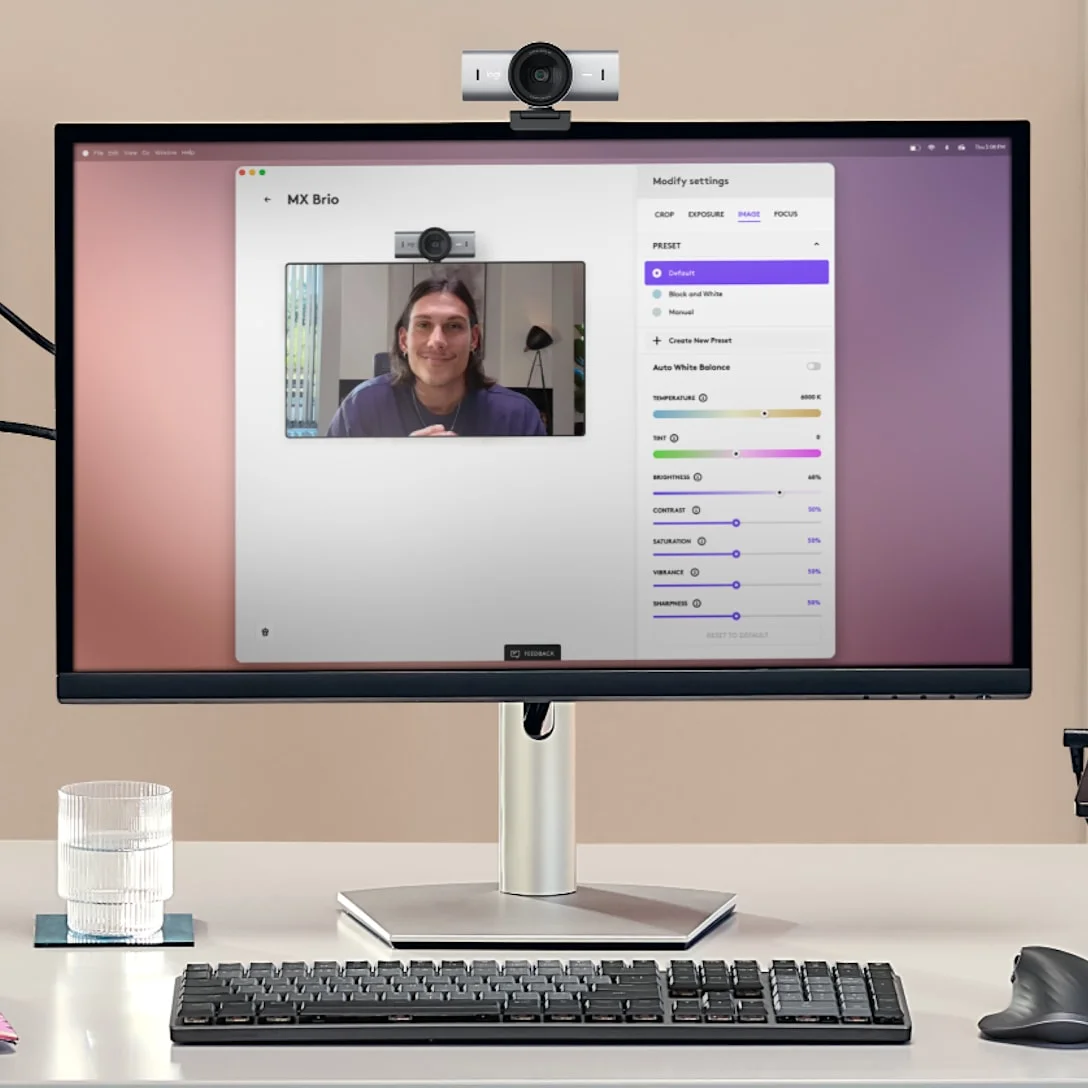
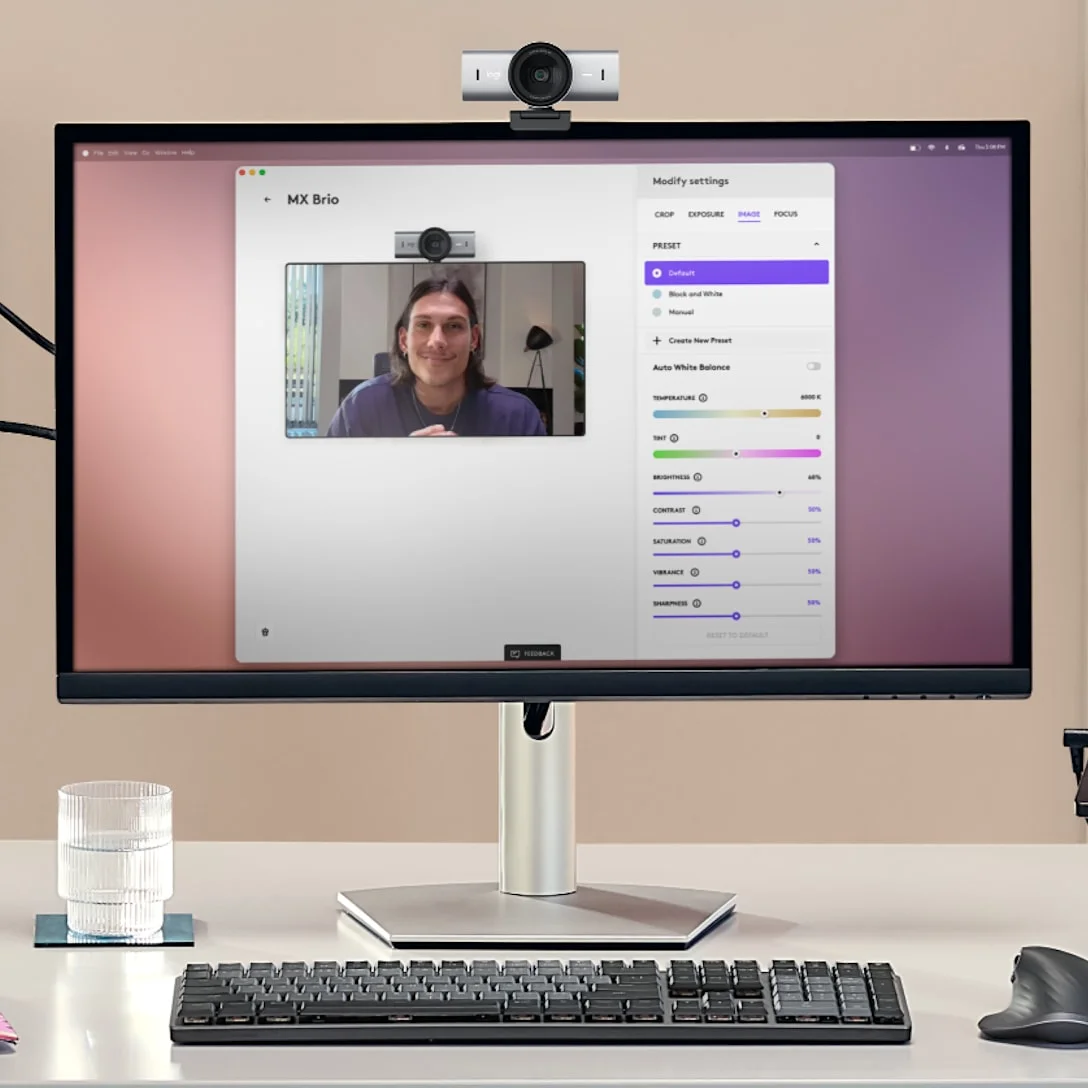
The MX Brio offers two documented modes that matter for this guide: 4K at 30 fps or 1080p at 60 fps. Logitech markets it for both collaboration and streaming. That makes it a sensible candidate for a single camera if you stream in the evening and take video calls or record presentations during the day.
The key decision is which mode you will use most. For gameplay streams or fast hand movement, 1080p60 is the relevant mode. For recorded tutorials, talking-head videos or calls where you want room to crop in during editing, 4K30 gives you more pixels to work with. You cannot get both from the 4K mode: it is documented at 30 fps, not 60.
Make sure you are buying the right model
Logitech's naming is easy to mix up. The MX Brio is a different product from the original Brio 4K and from the business-oriented Brio 705, and the names are similar enough to be confused in a quick search. Before you buy, check the exact product name and model on the box or listing, because specifications and features differ between these products.
What to check on Logitech's product page
The specifications covered here for the MX Brio are its resolution and frame-rate modes and its positioning for collaboration and streaming. If any of the following matter to your setup, confirm them on Logitech's current product page or in its documentation before buying:
- Microphones: whether the camera includes built-in mics, if you want onboard audio as a backup.
- Privacy shutter: whether a physical shutter or cover is included.
- Mounting: which mounting options are supported if the camera will not sit on your monitor.
- Focus and software: how focus works, and which configuration software is available for your operating system.
Be cautious with marketing that claims better image quality than rival cameras. Manufacturer comparisons are not independent tests, so we do not repeat them here.
Razer Kiyo Pro Ultra: best for flexible setups
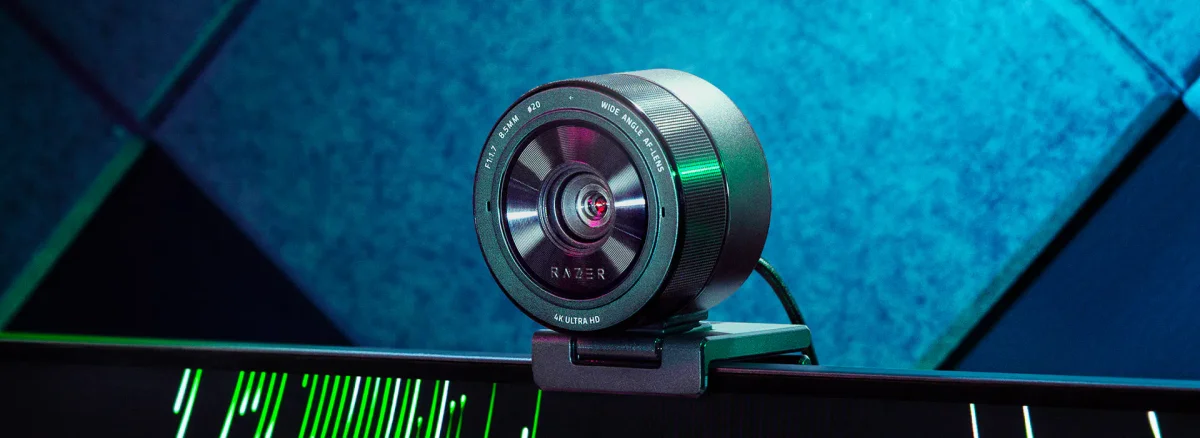
The Kiyo Pro Ultra (model RZ19-04420) has the widest set of documented modes in this guide: 4K30, 1440p30 and 1080p60. The 1440p30 option is useful if your recordings or stream canvas sit between 1080p and 4K. It gives you some cropping room at a smaller frame size than 4K.
Autofocus, mics and mounting
Unlike the Facecam MK.2, the Kiyo Pro Ultra uses an 8.3 MP autofocus lens. Autofocus suits streamers who move between sitting and standing, show objects to the camera or do not sit at a consistent distance. The trade-off is the reverse of fixed focus: autofocus can react to movement in the frame. If you want a locked look, check whether the configuration software lets you set focus manually on your system.
It also has built-in microphones, the only onboard audio listed in the specifications covered for these three cameras. Check Logitech's listing for MX Brio audio. Built-in mics are convenient as a backup or for quick calls, but for your main stream audio we still recommend planning on a dedicated microphone or headset.
The 1/4-inch camera mounting thread lets you put the camera on a tripod, desk arm or boom instead of the top of your monitor. That is worth having if you plan an overhead or off-axis angle, or want the camera away from a monitor that wobbles when you type. Our desk setup guides cover mounting and arm ideas.
What to check
- No 4K60: 4K is documented at 30 fps. Do not buy it expecting 4K at 60.
- Software support: Verify that Razer's configuration software and firmware updater support your operating system and version before buying, whether you use Windows, macOS or something else.
- Cable and port: The camera has a USB-C port. Check which cable is included and whether your PC has a matching or compatible port.
Trade-offs that actually decide it
On a spec sheet these cameras look similar, since all three list 1080p at 60 fps. The real differences are elsewhere.
- Fixed focus vs autofocus: The Facecam MK.2's fixed range of 30 to 120 cm is predictable for seated streams. The Kiyo Pro Ultra's autofocus adapts to movement and closer objects, but it may react to things you do not want it to.
- 4K30 modes vs a 1080p60-focused camera: The MX Brio and Kiyo Pro Ultra both list 4K at 30 fps, which helps with recordings you will edit or crop. The Facecam MK.2 is documented around 1080p at up to 60 fps. If your stream is 1080p60, a 4K30 mode is something you may rarely use.
- Built-in audio: The Kiyo Pro Ultra lists microphones, and the Facecam MK.2 has none. For the MX Brio, check Logitech's product page. Whichever camera you choose, plan on a dedicated mic for streaming.
- Privacy shutters: The Facecam MK.2 and Kiyo Pro Ultra both list built-in shutters. For the MX Brio, check Logitech's product page.
- Mounting: The Kiyo Pro Ultra lists a 1/4-inch mounting thread. If your camera will not sit on a monitor, confirm the mounting options for the Facecam MK.2 or MX Brio on the manufacturer's page before you plan around a tripod or arm.
Keep one more point in mind: sensor size or megapixel count does not prove image quality on its own. The Kiyo Pro Ultra's 8.3 MP figure is a rated specification, not a prediction of how the image will look in your room. Lighting, focus distance and processing all affect the result.
Compatibility checklist
- Confirm the mode you need: Decide whether you stream at 1080p60, record at 4K30 or want 1440p30, then check that the camera lists that exact combination of resolution and frame rate.
- Check USB bandwidth: Higher resolutions and uncompressed output need more bandwidth. The Facecam MK.2 requires USB 3.0 for uncompressed output. Avoid sharing that port through a busy hub with capture cards or storage. Our laptops and connectivity section covers ports and hubs.
- Check the cable and connector: Note the camera's port type and confirm your PC has a matching port, or that a suitable cable is included.
- Measure your seating distance: For a fixed-focus camera, make sure your face sits within the documented focus range.
- Confirm software and OS support: Configuration tools and firmware updaters are not always available on every operating system.
- Verify the model name: Make sure you are buying the MX Brio rather than an older Brio, and the Facecam MK.2 rather than an earlier Facecam.
- Plan your audio: Decide on a separate microphone before you rely on any built-in mics.
- Check the current price: We do not list prices because they change often. Compare current pricing yourself before deciding.
Buying advice for streamers
Light your face first. Lighting has a large effect on any webcam image, and a high-resolution camera can still look noisy in a dim room. Treat a key light as part of the webcam budget.
Match frame rate to content. If you play games or move your hands on camera, prioritise 1080p60. If you mostly talk to the camera, higher-resolution 30 fps modes can work well, especially for recordings.
Think about your stream canvas. If your broadcast is 1080p, a 4K camera feed gets scaled down. That can still be useful for cropping, but it is not a reason on its own to choose 4K.
Treat HDR and processing features with caution. Where documentation is inconsistent, as with the Facecam MK.2's HDR frame rate, check the current firmware before planning around a feature.
Keep the camera stable. A monitor that shakes when you type will shake the image. A separate mount, where the camera supports one, fixes that.
How we chose
We selected these three cameras from manufacturer product and support documentation. We focused on resolution at each frame rate, focus type and distance, USB requirements, audio, privacy and mounting. We left out claims the documentation does not support, such as 4K at 60 fps, and flagged where official sources disagree. Where a feature is not covered in the specifications we used, we tell you to check rather than assume it is missing. These picks reflect fit for different streaming setups based on specifications, not hands-on testing or measured image quality.
Frequently asked questions
Which webcam is best for streaming at 1080p60?
All three picks list 1080p at 60 fps. The Elgato Facecam MK.2 is the most focused choice for fixed desk streams, provided you have a USB 3.0 port for uncompressed output and a separate microphone.
Do any of these webcams record 4K at 60 fps?
None of them list 4K at 60 fps. The Logitech MX Brio and Razer Kiyo Pro Ultra both list 4K at 30 fps. The Elgato Facecam MK.2 is documented at 1080p at up to 60 fps.
Do I need a separate microphone for streaming?
Plan for one. The Facecam MK.2 has no built-in microphone. The Kiyo Pro Ultra lists built-in mics, but we still recommend a dedicated microphone or headset as your main audio source. For the MX Brio, check Logitech's product page for audio details.
Is the Logitech MX Brio the same as the Brio 4K?
No. The MX Brio is a different product from the original Brio 4K and the business Brio 705. Check the exact model name on the listing or box before buying, since specifications differ.
Research-led guides for better PC setups. Read how we select and check gear.